Bring peace to your life with our Home Internet

heart

One stop, all done!

Get your plan and the router you'll love

truck

60 mins delivery

At your door within 60 min

wifi router

No-brainer deal​

Unlimited Data and router bundle offers available

money withdraw

Good vibes only​

Give us a go! Choose Monthly or Yearly with a 7-day money-back guarantee​

bolt

Set-up in a flash

Easy, simple, Just plug in the SIM to connect

fire

50% off forever

Enjoy half price with no end date with a 12-month plan

Check our Home Internet plans

12 MONTHS

Unlimited data

Price

AED 3,673.95

Save 50%

AED 2098.95

Pay with

Plan + Router

+ 5G Router
Huawei router device

Included

Router (HUAWEI 5G WIFI)

Device specs

Price details

Plan price

AED 1575
12 months upfront

Router price

AED 523.95
One time payment

Plan information

  • No contracts; cancel anytime​
  • No activation fee or deposit​
  • Up to 5G speed
  • 50% off forever
  • 60 minutes free delivery

MONTHLY

Unlimited data

Price

AED 786.45

Save 15%

AED 747.08

Plan + Router

+ 5G Router
Huawei router device

Included

Router (HUAWEI 5G WIFI)

Device specs

Price details

Plan price

AED 223.13
Monthly

Router price

AED 523.95
One time payment

Plan information

  • No contracts; cancel anytime​
  • No activation fee or deposit​
  • Up to 5G speed
  • 60 minutes free delivery

MONTHLY

Unlimited data

Price

AED 262.50

Save 15%

AED 223.13

Plan

Price details

Plan price

AED 223.13
Monthly

Plan information

  • No contracts; cancel anytime​
  • No activation fee or deposit​
  • Up to 5G speed
  • 60 minutes free delivery

View prices with 5% VAT

Power up with the Huawei 5G router!

Up to 5G connectivity

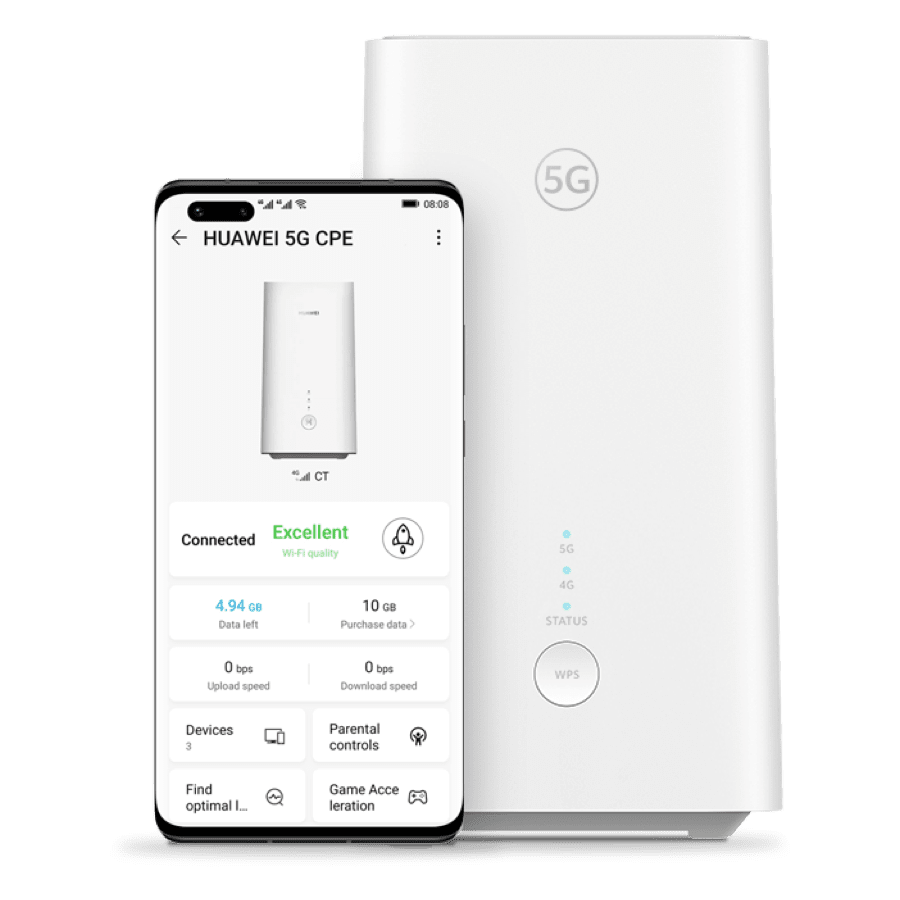
Smart control with the Huawei AI Life app

8K Video streaming

Insert your SIM and connect instantly

Connect up to 64 devices

Set up your Home Internet in a flash!​

How to start

new user

New Virgin Mobile Customer?

You have only one step to do

Just click the button below

existing user

Existing Virgin Mobile customer?

  1. Go to your Virgin Mobile app
  2. On the home screen, tap the large (+) button to the top right of the screen
  3. Tap on 'Home Internet'
  4. Tap the 'Get started' button and follow the instructions
Download the app

Promotions terms and conditions

  • Home Internet is a month-to-month service and renews automatically.
  • Coverage availability will vary depending on your device and location.
  • Your data SIM will be geo locked to a location that you choose.
  • You are eligible for a penalty free cancellation period of 3 days of your monthly plan's first payment and within 7 days of your annual plan bundle's first payment. If you find your router is defective within the first 7 days of your purchase, we'll provide you with a new one.

Here's more information you may need on our Home Internet FAQ

You're in good hands

We're seeing stars

App Store Icon
4.6

1.4K reviews

Google Play Icon
4.6

19.6K reviews

Huawei App Gallery Icon
4.4

17K reviews

3 Day Money Back Guarantee

Try it stress-free! We're flexible like that

Frequently asked questions

How can I use the Huawei AI Life App?

How to download the Huawei AI Life App? 

  • Option 1: Search in your App Store Huawei AI Life (available with Android and iOS)
  • Option 2: Scan the QR Code at the bottom of your Huawei home internet router
  • Option 3: Scan the QR code on the package box label
  • Option 4: Download from Huawei AppGallery


How do I log in?  

On the app home screen, touch the menu icon in the upper right corner and touch Login to HUAWEI account 

  1. If you already have a HUAWEI ID, log in directly 
  2. if you do not have a HUAWEI ID, register one as prompted and then log in 


How do I modify the name of a device connected to the router? 

  1. In Online Devices of the Device page, select the device whose name you want to change 
  2. Touch Change device name, enter the device name, and touch OK 


How do I block a device connected to my router? 

  1. On the Devices page, select the device you want to blacklist from the list of Online devices, then touch OK in the pop-up dialog box to blacklist the corresponding device  
  2. After the device is blocked, return to the Device page and view the device in the Blocked devices list


How do I set up parental controls? 

  1. On the Devices page, select the device you want to set up parental controls 
  2. Go to Parental control > New 
  3. Set Online time, Offline time, and Repeat setting for the device and then touch √ in the upper right corner 


How do I set guest Wi-Fi? 

Go to Show more > Guest Wi-Fi. Guest Wi-Fi can be enabled and disabled according to your preferences. You can also set a Guest Wi-Fi network name, password, and the length of time you would like Guest Wi-Fi to remain enabled for. 


What does Network Diagnosis on the router management page? 

  1. The Network Diagnosis function can be used to diagnose the current network status of a router. You can optimize the router settings based on the diagnosis result 
  2. Go to Show more > Network Diagnose 


How do I restart my router? 

  1. Go to Show more > Advanced settings 
  2. Touch REBOOT 


How do I log out of a router? 

  1. Go to Show more > Advanced settings 
  2. Go to Account settings > Log Out to log out 


How do I use the ‘optimize location’? 

  1. Click the Find optimal location button 
  2. Click Start button 
  3. Wait for the test result for about 30 seconds 
  4. Complete the test, score the current signal quality, and create location information 
  5. Change location, repeat the above steps 


How do I use the ‘smart diagnosis’? 

The smart diagnosis function can detect whether your home's Wi-Fi signal coverage is optimal and automatically check the coverage, network status, and device information of the router. You can optimize the router settings based on the diagnosis result. 

  1. Touch Smart diagnosis (or go to Network > Smart diagnosis) or the house layout plan to go to the diagnosis screen 
  2. Touch Edit or Go create or  the magnifying glass icon in the upper right corner to create your house layout 
  3. After the house layout is edited and saved, you can measure the signal coverage. Move the router icon to the actual placement position in your house, start testing for each spot 
  4. After measuring the signal of each room as prompted, touch GENERATE HEAT MAP. The closer the color is to green, the stronger the signal 
  5.  The signal coverage heat map is also displayed on the home screen of the router management screen 
  6. Diagnosis results will be displayed in three sections: Wi-Fi coverage, Online devices, Networking quality. You can view more parameters in the Wi-Fi coverage section, which focuses on the functions and operations related to Wi-Fi coverage 
  7. On the smart diagnosis screen, the system automatically checks the network connection status, Wi-Fi configuration, signal quality, firmware version, and router running status. A message will be displayed if any problems are detected. To read optimization suggestions given based on the detection result, touch suggestions 
Was this helpful?

Where can I use the Home Internet service?

When signing up for Virgin Mobile's Home Internet, you must choose your location to confirm network availability. Your internet service will be locked to the location you entered. It can't be used anywhere else or overseas.

If you'd like to change your address, you can contact us.

Read more - Where can I get more information on the Home Internet Service?

Was this helpful?

What is Virgin Mobile Home Internet?

Virgin Mobile Home Internet is our super-simple home Wi‑Fi that brings reliable, no‑fuss internet to your home; no cables, no contracts, no drama. Simply insert the SIM into your router, switch it on, and get connected.

With flexible plans, delivery within 60 minutes, and a deal so good it's basically a no‑brainer, getting connected has never been this easy.

Virgin Mobile's Home Internet is wireless. Wireless works best for some customers and where they're located, whilst fiber works better for others. That's why, when you sign up to Virgin Mobile Home Internet, we check the location where you want to use your Home Internet before you buy, and make sure it's all good. Awesome, right?

Was this helpful?

How do I set up my Virgin Mobile Home Internet connection?

Setting up your Virgin Mobile Home Internet is easy!

Watch this quick video guide for step-by-step instructions

Or check out the below:

Set up your router

Make sure you have everything from the box (the router, power cable) and the SIM card. 

  • Insert the SIM card into the slot at the bottom of the router (check the direction). 
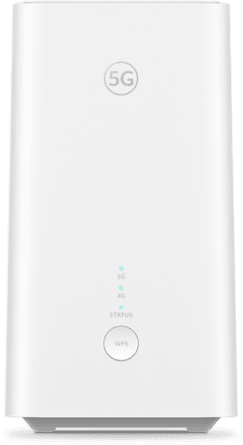
  • Plug in the router and wait about 30 seconds until all three signal lights turn blue  

Note: Things might look a bit different if you’re not using a Virgin Mobile Huawei router. 

Download the Huawei AI Life app

You’ll use the app to manage your router. Here are 4 options on how to get it: 

  • Search “Huawei AI Life” in the App Store or Google Play 
  • Download it from Huawei AppGallery 
  • Scan the QR code inside the box of the router 
  • Scan the QR code on the box 

Find the best spot for your router

Where you place your router affects your signal strength. 

  • Villas: Place it near a window in an open area. 
  • Apartments: Try placing your router near a window in an open area. If you’re on a higher floor (more than 10th), try near your apartment door to catch the indoor antenna.  
  • Keep it elevated, not inside cabinets, and away from thick walls or metal objects. 
  • Last thing — make sure you’re using your Home Internet in the same home address you registered. Your Home Internet is restricted to your home location, so this really matters 

Want to get it just right? If you are using Virgin Mobile's Huawei router it is even easier for you. Go to the Huawei AI Life App, tap "Find Optimal Location," and click Start. Wait 30 seconds for the test result, then score your signal quality and update the location info. Move the router to another location, repeat the process until you find the best possible score on the app. 

Want to change your Wi‑Fi name or password?

  • 5G routers: Enter the router’s IP address in your browser. You’ll find the IP and login details on the sticker under the router. 
  • Virgin Mobile Huawei router: In the Huawei AI Life app, go to ‘Online Devices’, select your device, tap ‘Change device name’, update it, and confirm. 

How do I set up parental controls? (Virgin Mobile Huawei Router)

Go to the Huawei AI Life App: 

  • Go to ‘Devices’ and select the device you want to manage 
  • Tap ‘Parental control’ > New 
  • Set online time, offline time, and repeat schedule → Save 

How do I set up Guest Wi‑Fi? (Virgin Mobile Huawei Router)

  • Go to the Huawei AI Life App.
  • Go to Show more > Guest Wi‑Fi. You can turn it on/off, set a network name, password, and choose how long Guest Wi‑Fi stays active. 

Need more help to set up your router? Check out the Virgin Mobile Huawei set up router guide

Was this helpful?

What plans are available with Virgin Mobile's Home Internet?

We have a Monthly and Yearly Plan:

  • Monthly: AED 250
  • Yearly: AED 1,999/12 months upfront (AED 167/month, VAT excl.)

Choose how you want it:

  • Home Internet Data-Only SIM monthly plans
  • Add an optional 5G router to your monthly plan if needed. Want to see the 5G router? (Upfront cost of AED 499 excl. VAT)

Note: Ownership of the router will be transferred to the customer upon purchase, as our plans require upfront payment.

Was this helpful?

What’s the coverage and speed like?

While customers across the UAE can connect with Virgin Mobile, coverage and 5G speed can vary in certain locations. Choose your address when you sign up for Virgin Mobile Home Internet to check the coverage and 5G connection in your area. You have the option to purchase a 5G router from us or use your own. If you choose to use your own router, make sure your device is 5G enabled to enjoy 5G speed. Please keep in mind that other factors could affect your coverage and speed, including building density and materials, local conditions, and general internet traffic.
Was this helpful?

Got questions?

Huawei 5G Router

Size (mm)181 x 96 x 90
ChipsetBalong 5000
Weight510g
BatteryPower
ColourWhite
Power SupplyAC / DC Power Supply
AC: 100 V - 240 V 50 Hz/60 Hz
DC: 12V/2A
Network5G / 4G LTE
Wi-Fi2.4 GHz and 5 GHz Dual-Band Wi-Fi 6
Wi-Fi connectivitySupports up to 64 devices

How it works

Spend AED 1,000​

After discounts to be eligible​​​

Pay your way​​​

Split into up to 12 installments​​

Enjoy 0% interest​

When you pay in 4 installments​​


Tabby payment details

  • A processing fee may apply.​
  • Pay the first installment at checkout, then the rest will be spread across your chosen plan. You'll see the full payment schedule before you pay.​
  • Your information stays private. We don't share your details with Tabby.​
More info
1

Web chat

web comments

Please write a message to start the chat.